

Arrow-Tip #30 Using the Outlook Calendar to Record Mileage
Some of you have may have read Arrow-Tip # 13 Can Outlook Help Me Track Billable Hours which discusses using the Microsoft Outlook Calendar to track billable hours. Thanks to Jim Long of Verge New Media for inspiring me through a twitter post to write about how I also use the Outlook Calendar to track mileage.
As with billable hours, one of the advantages to tracking mileage on your Outlook Calendar is that you already have the appointment and location listed there. So tracking miles just requires a custom Calendar table view and then viola you can copy and paste your Outlook Calendar into an Excel spreadsheet, add a summation cell and your mileage is calculated. So here is how I do it.
Custom View
First I created a custom table view in the Outlook calendar folder. Generally I keep my Calendar in the “Work Week” view, however, when entering custom data that will be used for reporting I find a table view much more helpful. Once you have created a custom table view called “Mileage” or whatever name you would like to use, you will need to add some fields.
Mileage View Fields
Click the Fields button on the on the Custom View window (if the Custom View window is not still open from creating the view then go to View/Arrange By/Current View/Define Views to open the View Organizer window and then select the row with “Mileage” for view name in the “Views for folder ‘Calendar'” list box and then click the Modify button on the right) and the Show Fields window will open (see thumbnail below).
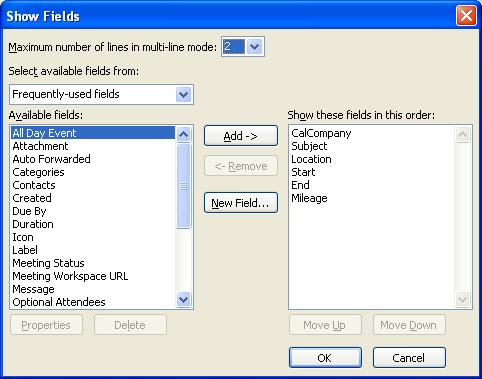
The first field you will want to add to your Mileage view is the “Mileage” field where you can record the number of miles between appointments. The Outlook appointment item does not have a field called “Mileage”, however, the Outlook mail item does. To access this field, select “All mail fields” in the “Select available fields from” drop down box in the top left corner of your Show Fields window and you should then see “Mileage” as one of the fields listed in the “Available Fields” list box below. Select Mileage in the “Available Fields” list box and then click the Add button – it should now appear in the “Show these fields in this order” list box on the right hand side of the Show Fields window. Use the Move Up and Move Down buttons below the “Show these fields in this order” list box to change the position of the Mileage field in the list box and view.
You may also like to add a field for “Company” to represent the company you are visiting. Once again, Outlook appointment items do not have a standard Company field, however, Outlook journal items do so you can add the Company field by selecting “All Journal Fields” in the “Select available fields from” drop down box just as you did with “Mileage” above.
Next you might want to add custom fields such as “Title” or “Reason for Visit” which many companies like to see on expense reports.
Excel Spreadsheet
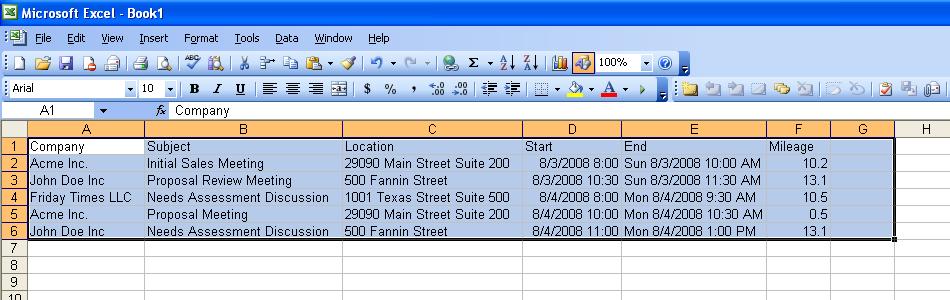
Once you have got your table view set up, you can copy items from your Outlook view and then paste them into Excel where values can easily be summed or pasted directly into an expense report. Make sure when you populate the Mileage field that you use symbols that will allow Excel to properly interpret your text. For example, to capture mileage from one appointment to the next appointment in one item, enter an = sign as the first symbol in the mileage field and then the number of miles to the appointment destination followed by a + sign and then the number of miles back to the office e.g. “= 10 + 15.9” (see thumbnail below).

Now simply select the rows you would like to export and then go to Edit/Copy to copy the Outlook fields and then in Excel go to Edit/Paste Special and the Paste Special window will open (see thumbnail below).
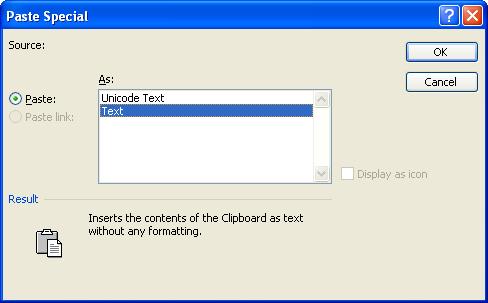
Make sure to select “Text” in the “As” list box and then click the OK button. Your Outlook appointment items should now be pasted into Excel (see thumbnail below). Note that if you used the = sign and + sign in your Mileage field in Outlook, Excel will calculate the addition for you when you paste your Outlook data.
Conclusions
Hopefully the Outlook Mileage view will come in handy for you whether you are required to submit an Expense Report and just want an easier solution for yourself or your assistant or you just need to track mileage for tax reporting purposes.
This is REALLY helpful! Thanks for posting.
My pleasure – glad it was helpful to you! Misty
Very nice. Is there a way to get the mileage field in the main appointment view as well?
Thanks for your comment, Michael! Assuming that by “main appointment view” you mean the appointment inspector window that opens when you double click on the appointment there is no easy way that I am aware of to get the mileage field to appear in the appointment view. You could create a custom appointment form that includes the mileage view, but since the main page of the form is not editable that would involve recreating several fields on the appointment page that are not easily reproduced. Another option would be to customize your appointment form by making the All Fields tab visible which would allow you to view the mileage field when “All Appointment Fields” is selected in the “select from” drop list on the All Fields tab.
If my assumption regarding the meaning of “mail appointment view” is incorrect, please let me know and I’ll provide another solution. Also, if anyone else has a different solution for Michael’s question, please post another comment. Thanks again for your comment, Michael, and I’m sorry I didn’t have an easier solution for you. Misty
That’s exactly what I was referring to. I have since found several solutions to the issue that while they work, it ends up introducing more problems.
This article outlines some of the issues with modifying the view:
http://www.outlookcode.com/article.aspx?id=18
So in the end, I’ve decided to recommend to my client to create a new table view and add the mileage field to that. So populating the field is a two step process (create appointment, switch to table view to add the mileage data) but this is acceptable compared to hosing the date dropdown controls.
I will document my ‘workaround’ and post a link for others in case anyone wants to know. Also I have tried with both Outlook 2010 and 2007 and it works with both versions.
Michael, just read the post in your link – I didn’t realize that you are a developer so you have a few extra tools at your disposal. Even so, the solution you outlined is pretty much what I do. I enter my appointments using the regular Outlook appointment form and then once a week I switch to my mileage view and input mileage for all appointments during the week at the same time. That way it isn’t really a 2 step process, its just two different processes all together. Thanks for your follow up comment and please post links to any other follow up posts on your blog! Misty
Cool. I was googling “How to track expense in outlook” and could not find many items like this. This is really great and very helpful solution. Thanks a lot.
My pleasure, Ryan – glad we could help! Misty
Great information! And true advice, thank you 🙂
glad it was helpful – thank you for your comment! Misty
Thank you, guys for your information!
Thank you for your comment – glad you found the information useful! Misty